
MacBook Air A2681 (M2, 2022) Screen Replacement & Troubleshooting Guide
· 2 min read
In short
Troubleshoot display, sleep and wake issues after replacing the screen on a MacBook Air A2681 (M2, 2022). This guide covers hinge magnet alignment, lid angle sensor inspection, display connections and final testing, with calibration guidance where applicable.
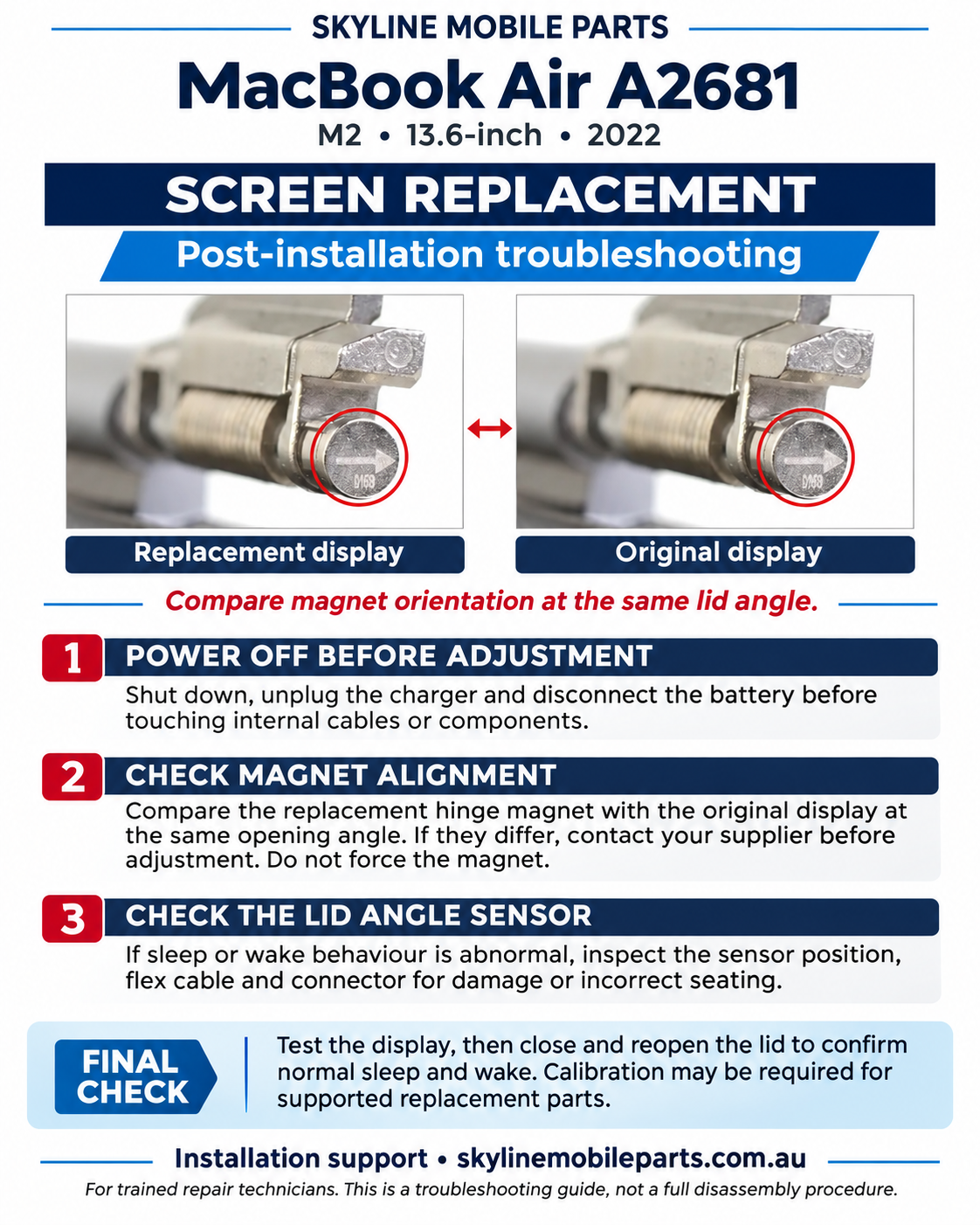
MacBook Air A2681 Screen Replacement – Installation & Troubleshooting Guide Compatible model: MacBook Air 13.6-inch, M2, 2022 (A2681)
If the display does not operate correctly after installation, or the MacBook does not sleep or wake normally when the lid is closed or opened, follow the checks below.
Power Off Before Inspection
Shut down the MacBook and unplug the charger. Follow the appropriate service procedure to disconnect the battery before adjusting internal components or reconnecting cables.
Never connect or disconnect the display cable while the battery or charger is connected.
Compare the Hinge Magnet Orientation
The hinge magnet works with the lid angle sensor to help the MacBook detect the position of the display.
Compare the magnet on the replacement display with the magnet on the original display. Both displays must be positioned at the same opening angle and viewed from the same direction.
If the magnet orientation differs, contact Skyline Mobile Parts for guidance before making adjustments. Do not force, pry or randomly rotate the magnet, as this may damage the component or affect lid detection.
Inspect the Lid Angle Sensor and Flex Cable
If sleep or wake behaviour remains abnormal, check that the lid angle sensor is correctly positioned and securely installed.
Inspect the sensor flex cable and connector for loose connections, damage, pinching or incorrect seating. Ensure the cable is routed correctly and is not trapped beneath the hinge or a cover.
Check the Display Connections
With the battery disconnected, inspect the display connectors for debris, damage or misalignment. Confirm that the connections are properly seated and that the relevant brackets and covers are correctly installed.
Do not apply excessive pressure to connectors or flex cables.
Test Before Completing the Repair
After reassembly, reconnect the battery and test the MacBook. Check:
• Normal startup and display output. • Image stability and brightness adjustment. • Camera operation. • Display operation at different lid angles. • Sleep when the lid is closed and wake when it is reopened.
Disconnect external displays and accessories when checking normal lid-close sleep behaviour.
- ## Calibration, Where Applicable
Some supported replacement parts may require calibration or completion of the repair through Apple’s applicable repair process. Requirements depend on the installed part and macOS version. Magnet alignment alone does not replace any required calibration.
If the problem continues, contact Skyline Mobile Parts with a description of the symptoms and clear photos of the hinge magnet, lid angle sensor and cable connections.
Installation support: www.skylinemobileparts.com.au
This guide covers post-installation checks and does not replace the complete model-specific service procedure. Installation should be performed by a suitably trained repair technician.
More repair guides
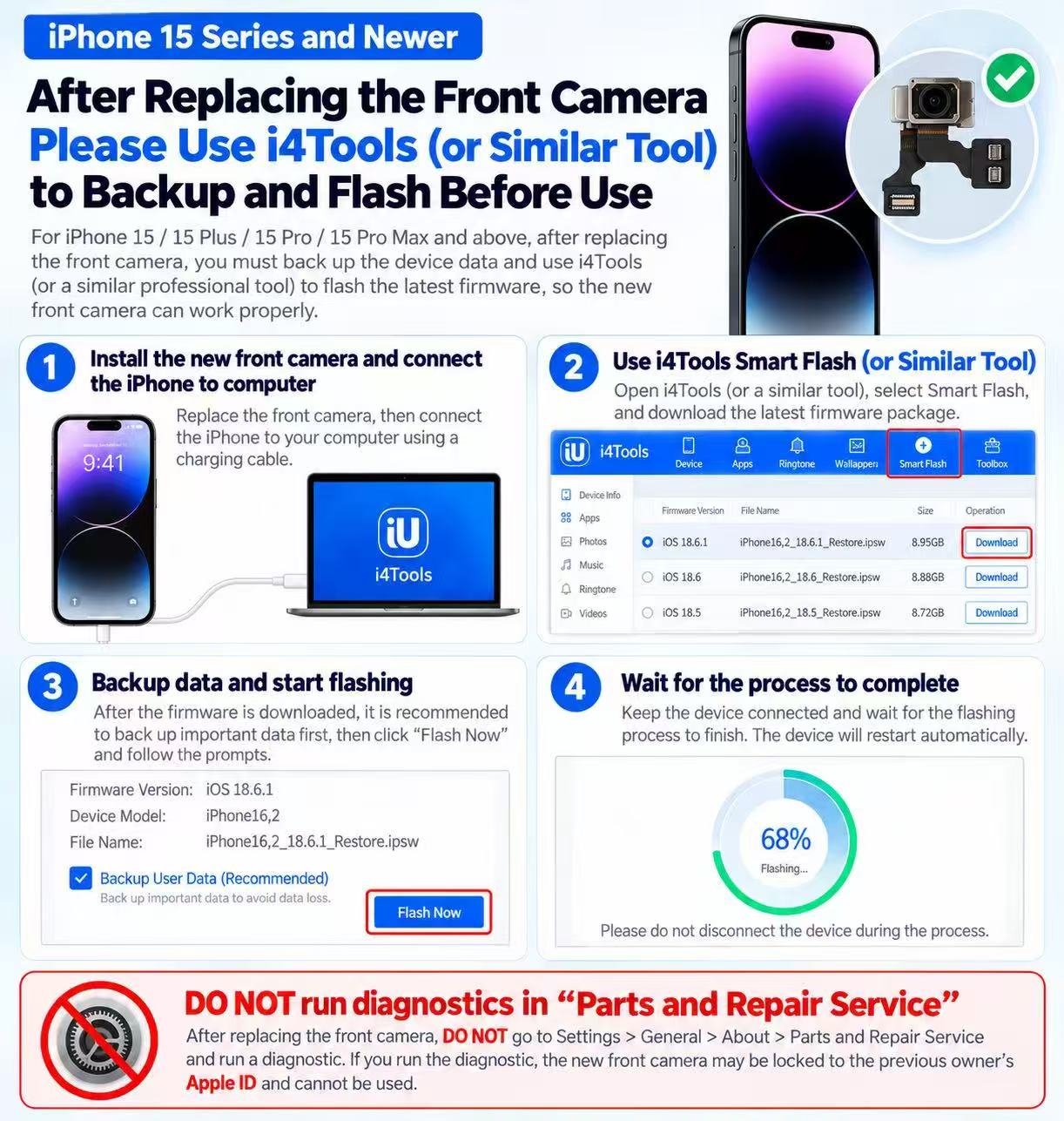
How to repair front camera flex for iPhone 15 Serials and newer
Front camera not working after replacement? Check it out on this blog
27 October 2026
iphone · screens
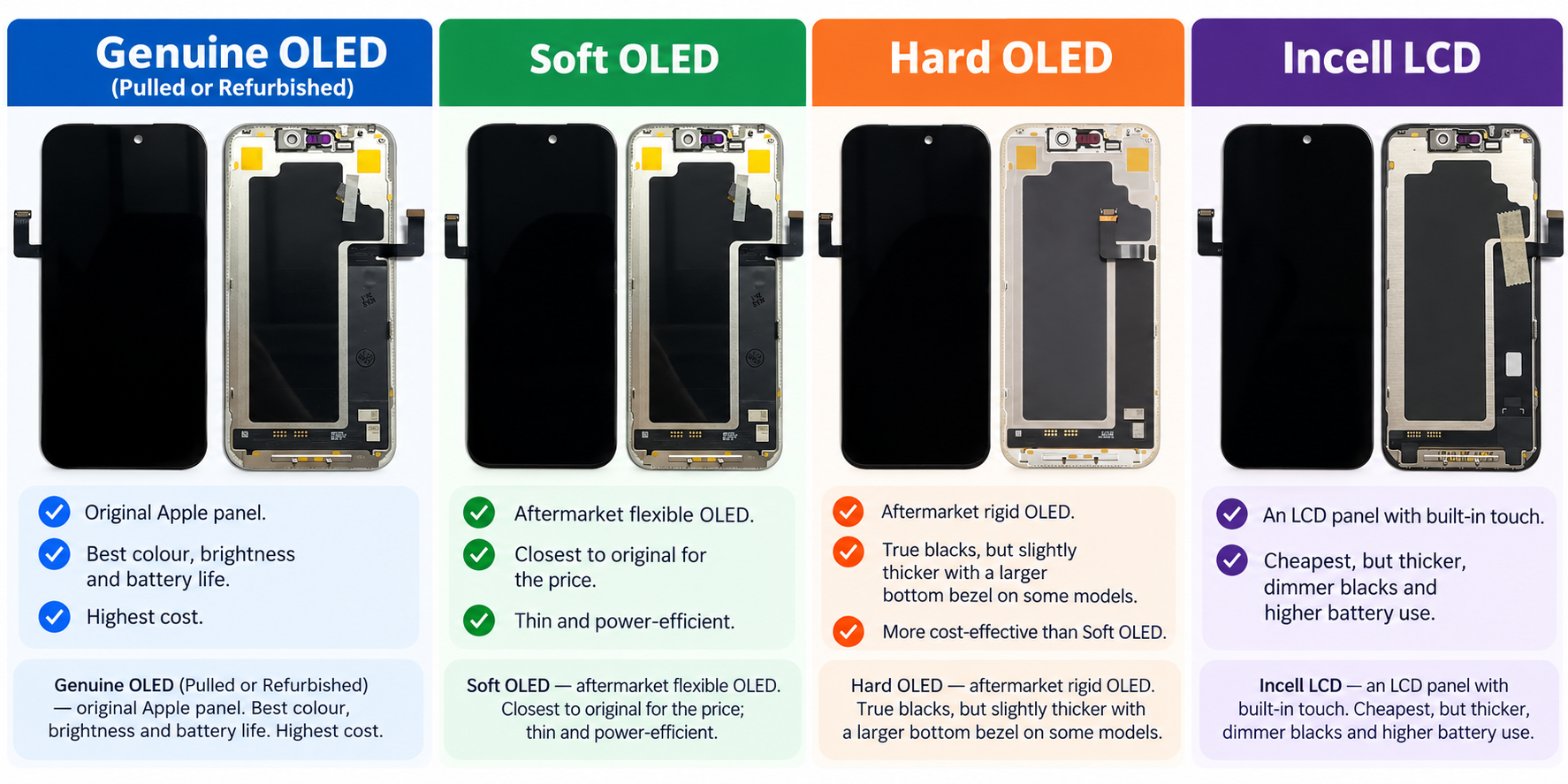
Incell vs Hard OLED vs Soft OLED: Which iPhone Replacement Screen Should You Use?
For OLED iPhones (X and newer), a soft OLED or genuine pulled/refurbished OLED looks closest to the original. Incell LCDs are the cheapest option but are thicker, use more battery and lose the deep blacks of OLED. Hard OLED sits in between.
22 October 2026
iphone · back glass
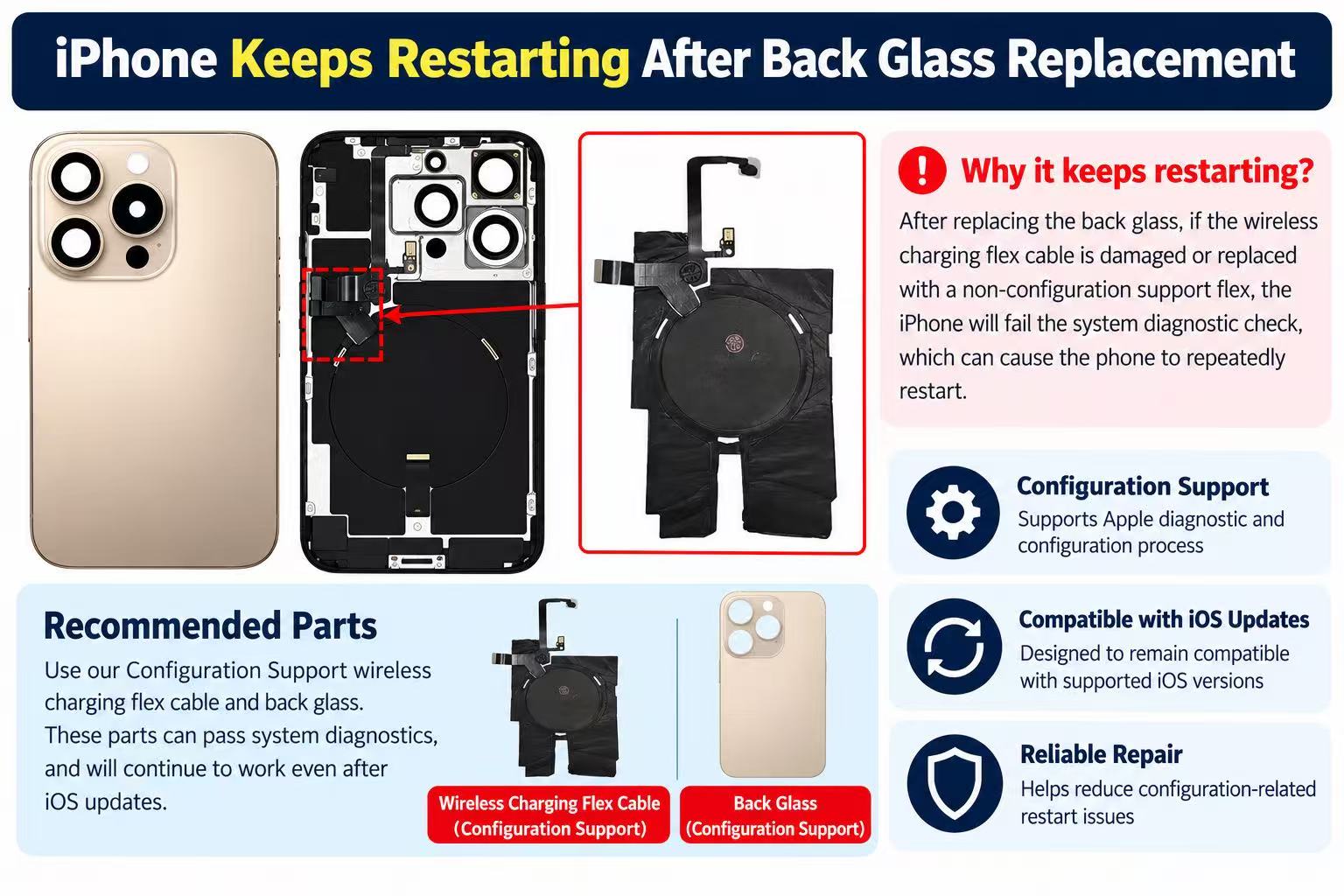
Why iPhones keep restarting after back glass or wireless charging flex replacement?
iPhone keep restarting every 2 - 3 minutes after back glass or wireless charging flex replaced?
21 October 2026· Easy· 20 min